
Downloading and Backing Up a Moodle Course
Before you begin
You must have the Instructor role in a course to download or back it up.
Download a Moodle Course
To save your Moodle course content offline on your device or a cloud drive, use the Download course content feature in Moodle. This downloads course content like images and course pages into a zip file. Once unzipped, you can view the course files and the course pages (as HTML files viewable in a browser). Note that student grades and assignment submissions are not included in the download.
1 Enable "Download course content" in course settings
By default, this feature is disabled. To enable it, navigate to Settings under your course title. On the Course Settings page, in the General section, select Yes for Enable download course content.
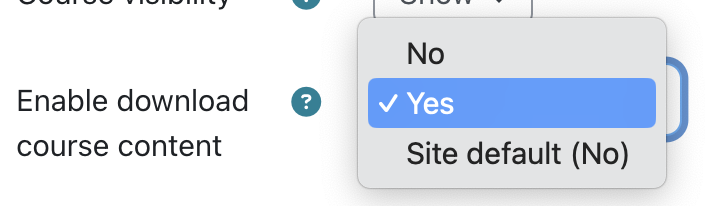
2 Download the course content
Once Download course content is enabled, return to the course main page and click More under the course title to select Download course content. This downloads the course to a zip file to your computer. You may unzip the file (Unzip in Windows vs Mac OS) to view your downloaded course content on your device or save it to a cloud drive.
Remember to disable Download course content in Course Settings after completing your download. When enabled, this feature is also accessible to users in other roles, including Students, Export-Only Instructors, and Teaching Assistants. Disable it to prevent unintended access to the downloadable course archive.
Back Up a Moodle Course
Moodle also has a Backup feature that exports all or selected parts of a course into a compressed file that can be restored to another Moodle site outside of CCA Moodle. While you can save the backup file to your device or cloud drive, it cannot be viewed unless restored to a Moodle site. This is ideal for keeping a complete copy of a course or transferring a course to a different Moodle site.
To create a course backup, on the course main page, go to More under the course title and select Course reuse. On the Course reuse page, click Backup. Follow the steps below in the video to generate and download the backup file to your device. As emphasized in the video, the backup file cannot be opened directly on your computer. You will need to restore it to a Moodle site to view or use the course.
The Moodle organization often runs free demo Moodle sites where you may temporarily restore your course backup and view the course in its original form. For example, you may access the Moodle Demo Sandbox site and log in as a teacher using the provided details. Once you are in a sample course, you may restore your backup course there and view your course content temporarily. Note that the sandbox site may not always be available and that it is reset to its blank state every hour, on the hour. For future reference, consider signing up for the Moodle in English community forum for assistance.